Welcome to LoopGantt. This guide walks you through creating your first project, adding tasks, and viewing your Gantt chart — all in about 5 minutes.
Step 1 — Create a project
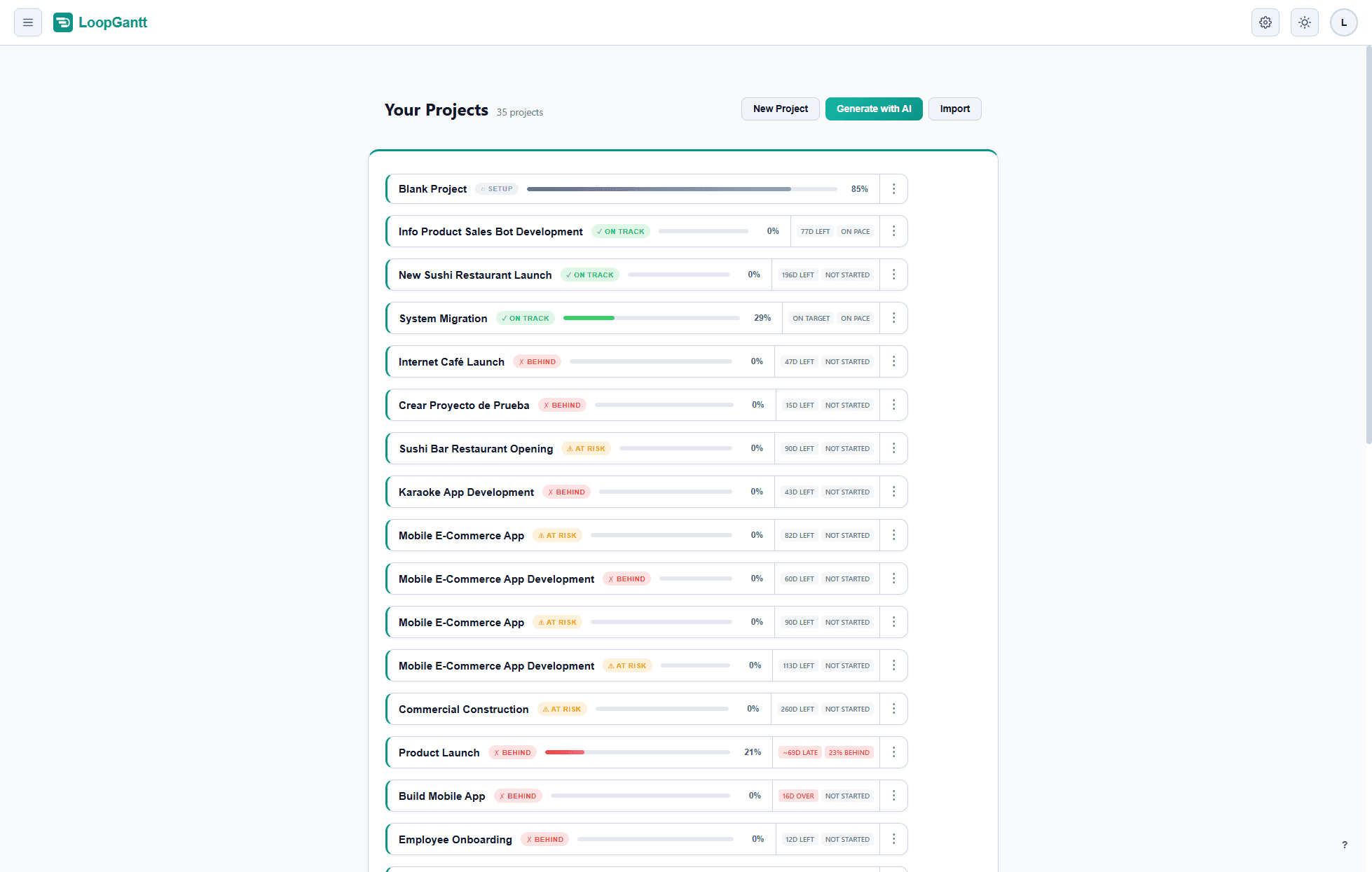
From the dashboard, click New Project. Optionally pick a Start date (today if you leave it empty), then choose Blank Project or a template. You can always change these later.
Step 2 — Add tasks
Your project opens in Gantt view with an empty task list on the left. To add tasks:
- Click the + button at the top of the task list, or press Tab while a row is selected.
- Type a name and press Enter to save.
- Set a duration (in working days) by clicking the duration cell.
The Gantt bars appear automatically on the right as you enter durations.
Step 3 — Organize with phases
Phases group related tasks and give your plan a clear structure. To create a phase, right-click any task and choose Convert to Phase, or click the arrow next to the + button at the top of the task list and choose New Phase.
Drag tasks under a phase to nest them. Phases automatically span all their child tasks — you cannot manually set a phase duration.
Step 4 — Add a dependency
To link Task B so it starts after Task A finishes (a Finish-to-Start dependency):
- Click Task B to open the task editor.
- Under Dependencies, open Select predecessor….
- Select Task A as the predecessor and choose type FS.
- Close the editor. Changes save as you make them.
The Gantt chart rescheduled automatically — Task B now starts the day after Task A finishes.
Step 5 — Share or export
Click the Export button in the toolbar to download your plan as a PNG, CSV, or JSON file. PDF, Word, and Excel exports are available on the Pro plan.
What's next?
- Learn about all four dependency types (FS, SS, FF, SF).
- Try the AI Project Generator to build a full plan from a single sentence.
- Import an existing plan from CSV or JSON.